

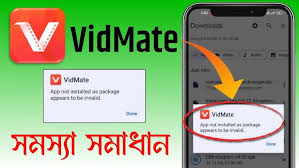
No app is completely error-free, and video downloading tools that interact with external platforms are especially prone to occasional hiccups. A platform update changes something on their end, a partial download leaves a corrupted file, or a permission setting quietly resets after a phone update. These situations are frustrating but almost always fixable without going through a full reinstall. Understanding the most common issues with the vmade app and how to address them saves real time and prevents the loss of download history and saved settings that a reinstall would cause.
When Downloads Stall or Fail Silently
A download that stops at a certain percentage and never moves is one of the most common complaints. The first thing to check is the obvious one. A dropped connection mid-transfer will pause progress indefinitely without triggering an error message on some device configurations. Toggle your connection off and back on, then return to the download queue and tap resume. This resolves the issue in most cases without any further steps.
If the connection is fine but the download still refuses to complete, clearing the app’s cache is the next step. Go to your device settings, find the app in the installed applications list, and tap the option to clear cached data. This does not delete your downloads or settings. It removes temporary files that can occasionally conflict with active transfers and cause them to hang.
Search Results Not Loading
When the search function returns nothing or displays an error, the most likely cause is a temporary connectivity issue between the app and its search index. Closing the app completely and reopening it resolves this in most situations. If the problem persists, check whether your device has restricted the app’s background data access. Some Android power saving modes cut network access for apps that are not actively in the foreground, which can affect search even when the app appears to be open.
Video Quality Options Not Appearing
If the quality selection menu appears empty or only shows one option when you expect several, the source video may have limited availability at that moment. This is not an app malfunction. Try a different video from the same source to confirm whether the issue is isolated to that specific file. As a free video downloader, the available quality options are entirely dependent on what the source provides, so gaps in the menu reflect source limitations rather than app problems.
Storage Permission Errors
An error message about storage access usually means a permission was reset at some point, which happens occasionally after Android system updates. Open your device settings, navigate to the app permissions section, find this app, and confirm that storage access is set to allowed. Once that permission is restored, downloads will save normally. This takes under a minute and is a common root cause of what initially looks like a more serious problem.
When to Actually Reinstall
Reinstalling should be a last resort rather than a first response. The steps above resolve the vast majority of common errors. If an issue persists after clearing cache, checking permissions, and verifying connectivity, then a fresh installation may be warranted. Before doing that, note your current version number so you can reinstall the same build rather than potentially introducing a different version with its own quirks. It’s worthy of that extra step, because reinstalling the wrong version can create new problems while solving the original one.
